Table of Contents
Quick Summary
Med spas can automate appointment reminders using SMS and email within scheduling software. With the best solution, you can set timed reminders that allow clients to confirm or cancel by text, and reduce no-shows. This minimizes manual follow-up from your staff. It also keeps your schedule running smoothly and consistently.
The Cost of a Missed Appointment
Definitely, no-shows are one of the most preventable revenue losses your med spa faces. A single missed Botox appointment can mean $300 to $600 gone in thirty minutes. Multiply that across a week, and the impact becomes significant. The cause is rarely intentional. Clients forget. Life gets busy. Your staff gets swamped.
But a well-timed reminder, sent automatically, can save the day. It’s all it takes to keep the appointment on the calendar, without lifting a finger. However, Manual reminder calls are time-consuming and inconsistent. They are often skipped when the front desk is busy. Automated reminders solve all three problems. This guide shows how to set them up in PatientNow scheduling software.
Why Listen To Us
We’ve spent over two decades building software exclusively for aesthetic practices. Not for fitness studios or general clinics. Every feature in PatientNow, including scheduling and reminders, is designed around real med spa workflows. It reflects how owners and teams actually operate. This guide reflects that expertise firsthand.
Why Appointment Reminder Automation Matters for Med Spas
To start with, med spa clients are different from typical medical patients. They are booking discretionary treatments. Also, they often juggle packed personal schedules and frequently make appointments weeks in advance. That gap between booking and treatment is where no-shows are born.
But automated reminders close that gap. They keep your practice top of mind. Besides, your team doesn’t need to pause patient care to make phone calls. More importantly, they give clients a direct path to confirm or cancel. So your schedule stays accurate, not just full.
The operational benefits compound quickly. When clients cancel by text, your team can fill the slot from the waitlist. Your providers won’t discover the no-show at the start of the appointment. The result? Fewer gaps. Less scrambling. Better days. Let’s now get into the nitty-gritty of how to set up automated appointment reminders.
How to Set Up Automated Appointment Reminders in PatientNow
PatientNow scheduling software gives full control over reminder timing, content, and delivery. Here is how to configure everything from scratch:
Step 1: Access Your Schedule Settings
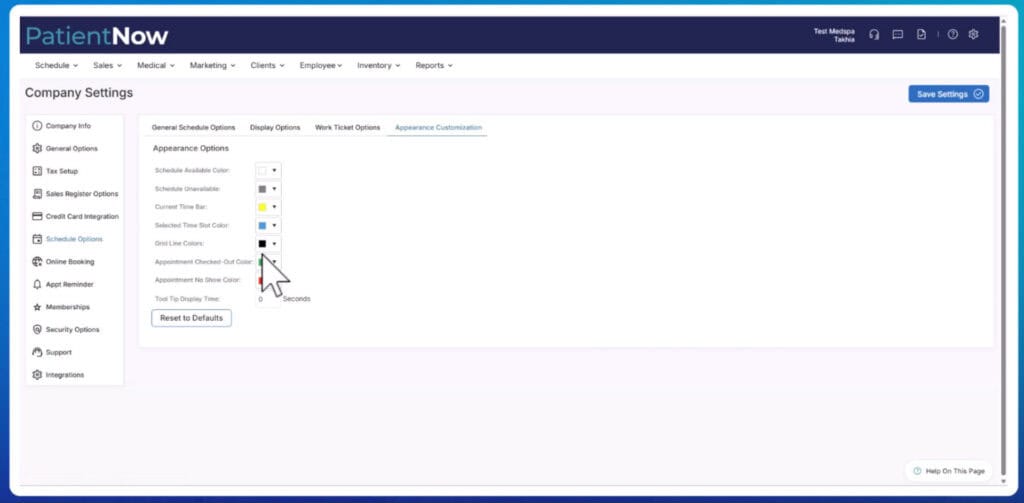
To start off, navigate to the gear icon in the top right corner of your dashboard. Select Company Settings, then look for Schedule Options. This is where your appointment reminder configuration exists. .
Before making changes, confirm that your time zone is set correctly. Reminders go out at 9:00 AM local time. If your time zone is off, your clients will receive messages at the wrong hour.
| Pro tip: PatientNow’s automated reminders are sent at 9:00 AM based on your practice’s configured time zone, keeping messaging professional and well-timed. |
Step 2: Enable Appointment Reminders
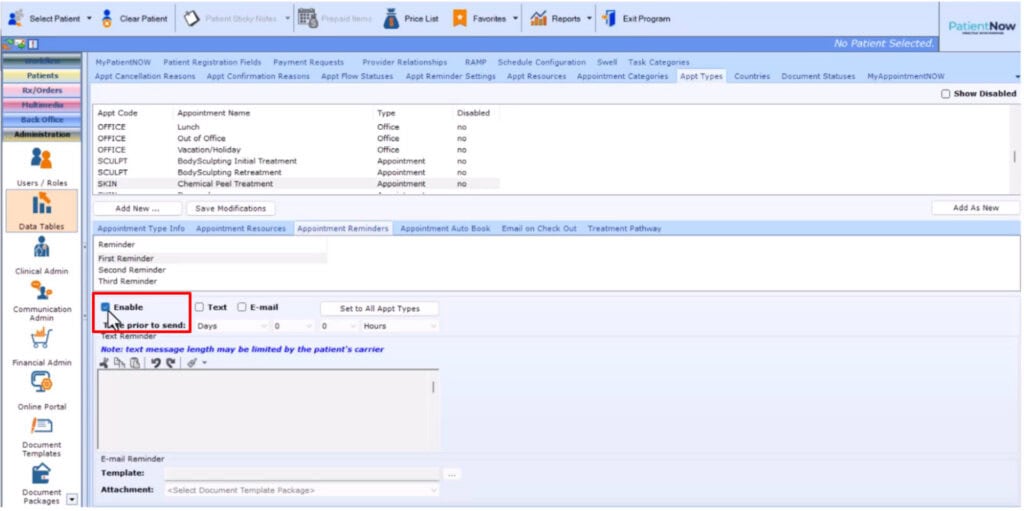
Next, check the box to enable appointment reminders. This activates automated reminders for all configured appointments. You will see two additional options here worth considering:
- Send automatic email confirmations even if a manual confirmation was already sent.
This is useful if your front desk sometimes confirms appointments by phone. But, additionally, you still want the digital paper trail. - Send automated reminders to clients who have already confirmed.
This is recommended for longer booking windows. The reason? Clients may still forget a confirmed booking as the date approaches.
Step 3: Configure Confirm and Cancel Options
Certainly, one of PatientNow’s most practical features is two-way text reminders. You can allow clients to confirm or cancel appointments by replying with a keyword. To activate this:
- Check the boxes for confirm and cancel options.
- Enter your preferred keyword into each field.
Keep keywords short and intuitive. Something like YES to confirm or CANCEL to cancel works reliably. You can also ask the patient to give you a reason for the cancellation. When a client cancels via text, your team is notified immediately. You can then fill the slot from your waitlist rather than lose potential revenue.
Step 4: Build Your Reminder Schedule
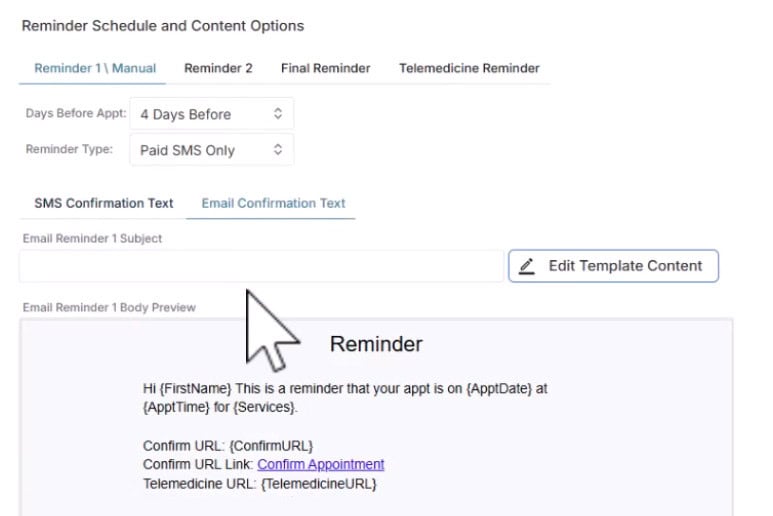
Next, PatientNow supports up to three reminders per appointment. You can configure each reminder independently. A separate Telemedicine Reminder is also available for virtual visits. For each reminder, you can set:
- Days before the appointment: How far in advance does the reminder go out.
- Reminder type: Email, SMS, or both.
- Message content: Written directly for SMS; template-based for email.
Med Spa Appointment Reminder Sequence Template
Not sure how to design a patient appointment reminder sequence? Here’s how a typical optimized med spa three-part reminder system looks:
| Reminder | Timing | Suggested Purpose |
| Reminder 1 | 3-5 days before | Gives patients enough time to reschedule & also reduces same-day cancellations |
| Reminder 2 | 1-2 days before | Confirmation prompt, include confirm/cancel keywords here |
| Reminder 3 | Day of appointment | Final heads-up, reinforce any prep instructions or parking details |
Step 5: Write Your SMS Reminder Messages
Note that SMS reminders are written as free text directly inside the reminder configuration. So, keep messages short, friendly, and action-oriented. Clients respond better to natural-sounding messages. So, don’t sound like a dry, rigid robot. PatientNow provides merge tags you can insert to personalize each message. These pull in details like:
- Appointment date and time.
- Confirmation code.
- Service name or provider.
A well-structured SMS reminder might look like this:
Hi [Client First Name],
This is a reminder that your [Service Name] with [Provider] is scheduled for [Date] at [Time.
Reply YES to confirm or CANCEL to cancel. Questions? Call us at [Phone Number].
Avoid packing too much info into one message. Clients scan texts quickly. The goal is a clear, easy action, not a paragraph of information.
Step 6: Configure Email Reminder Templates
Next, note that email reminders work differently from SMS. Instead of free-typing the content, you select a pre-configured email template from your template library. Select the three-dot menu next to the reminder and choose the appropriate template.
Make sure your email templates are built and saved before configuring reminders. A clean email reminder should include three components:
- Appointment details.
- A clear confirmation prompt.
- Any pre-appointment instructions relevant to the service.
For instance, numbing cream timing and which medications to avoid, or, what to wear for body treatments.
Step 7: Use Set to All Appointment Types (With Caution)
Dialed in a reminder sequence you are happy with? Great. PatientNow gives you the option to apply it across all appointment types at once using the Set to All Appt Types button. This ensures consistent messaging. Use it carefully. Otherwise, it will overwrite custom reminders for specific appointment types. There is no undo. Any customization will need to be redone manually.
A better approach for practices with diverse service menus: configure appointment-specific reminders first, and use the global setting only for new appointment types you add later.
Tailoring Reminders by Appointment Type
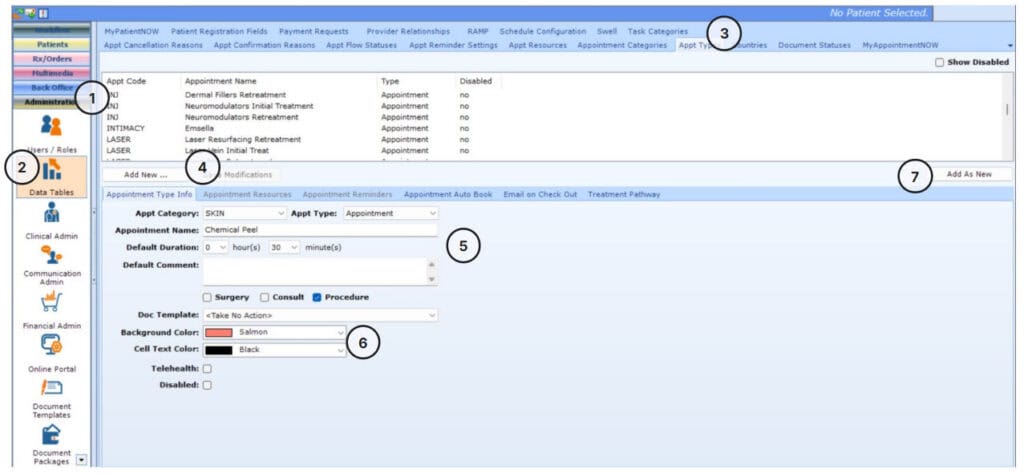
Truly, not every appointment deserves the same reminder. A routine Botox touch-up needs different information from a first-time body contouring consultation. While a weight loss check-in requires something else altogether. PatientNow lets you configure reminders by appointment type. This improves the client experience and reduces no-shows.
Consultation Appointments
Clients booking their first consultation are often less committed than existing patients. Earlier reminders, four to five days out, are effective. They give uncertain clients time to reschedule rather than disappear. Include a warm, welcoming tone that reinforces what they can expect.
Treatment Appointments with Prep Instructions
Injectables, laser treatments, and body procedures require clients to arrive prepared. Numbing cream, avoiding blood thinners, and wearing specific clothing all matter. These details belong in the reminder. You can build a template that includes the relevant prep notes for each service category.
Follow-Up and Wellness Appointments
For clients in weight loss or HRT programs, consistency matters. Reminders that reference progress feel more personal. Generic tools cannot match this. But PatientNow’s clinical tools integrate with the scheduling system. This gives you the context to make these messages feel thoughtful rather than automated.
Connecting Reminders to Your Waitlist
Indeed, automated reminders are impactful. But they become even more powerful when they feed into a larger scheduling workflow. When a client cancels via a text keyword, the appointment slot opens. What happens next depends on whether your waitlist is set up to respond.
PatientNow supports waitlists with automated staff notifications when a slot opens. You can configure this alongside your reminder setup. Consequently, your team receives an immediate alert when a cancellation comes in. So, this slot can be filled by a waitlisted patient. This keeps your schedule full. It also reduces manual monitoring.
| Note: PatientNow’s schedule settings also include an option to send automated SMS check-in notifications to employees when a client checks in. This keeps providers informed without front desk interruption. |
Setting Up Provider Notifications
Remember, clients are one side of the reminder equation. Providers are the other. PatientNow lets you configure automatic notifications to staff for appointment activity. These include new bookings, modifications, and cancellations via email or SMS.
This keeps your providers informed without adding noise. If a 2:00 PM Botox appointment is canceled, the provider gets an SMS. They can adjust their schedule immediately without front desk involvement. Small efficiency gains like this accumulate across the week.
Configure these notifications under Provider Notifications inside your schedule settings. You can enable them for email, SMS, or both. Also, you can control which types of activity trigger a notification.
Beyond Reminders: Using Automated Pathways for Retention
Undoubtedly, appointment reminders solve an immediate problem. Keeping clients from forgetting their booking. But the scheduling system is also the entry point for a broader long-term client retention strategy. PatientNow’s Concierge lets you assign clients to automated pathways based on their appointment.
A client booking a weight loss consultation can be enrolled automatically. The pathway continues after the visit. For example, the system can send educational content. It can also prompt rebooking at the right interval.
In your schedule settings, you can toggle whether clients are automatically assigned to pathways based on their appointment type. When enabled, every appointment becomes a retention touchpoint, not just a transaction.
For practices expanding into wellness, HRT, or weight loss services, this capability is crucial. It goes beyond what most salon-first platforms offer. Plus, it connects clinical scheduling with the kind of patient engagement that drives long-term retention.
6 Common Appointment Reminder Automation Mistakes Med Spas Make
Getting the setup right matters as much as turning it on. These are the six most common missteps:
1. Sending reminders too late
A same-day reminder alone rarely prevents no-shows. So, start three to five days out.
2. Skipping two-way SMS
If clients can’t confirm or cancel by text, you lose the ability to fill gaps in time.
3. Using the same message for every appointment
A consultation needs a different context than a follow-up treatment.
4. Forgetting prep instructions
Reminders without pre-care details lead to unprepared clients and wasted appointment time.
5. Applying global settings without reviewing custom sequences
The “Set to All” button overwrites appointment-specific reminders with no undo option.
6. Not enabling provider notifications
When staff aren’t alerted to cancellations, open slots go unfilled.
Build A Complete Automated Med Spa Appointment Reminder System
To wrap up, automated appointment reminders are vital. They are one of the highest-return configurations you can make inside your scheduling software. The setup investment is a few hours. But the payoff is huge and ongoing. This means fewer no-shows, less manual follow-up, and a more consistent patient experience. Here is a quick reference for building a complete reminder system in PatientNow:
1. Confirm your time zone is set correctly in company settings.
2. Enable appointment reminders and decide on confirmation/cancellation settings.
3. Configure, confirm and cancel keywords for two-way SMS.
4. Build your three-reminder sequence: set timing, delivery method, and content for each.
5. Write SMS messages using merge tags; connect email templates for email reminders.
6. Configure appointment-specific reminders for treatment types with unique prep needs.
7. Enable provider notifications so your team stays informed without interruption.
8. Connect your waitlist notifications so cancellations create opportunities, not gaps.
Every one of these steps exists inside the one platform. The same system manages EMR, marketing, payments, and records. So, no third-party reminder tool, tab switching, or reconciliation between systems is needed. That is the difference between software built for med spas and software adapted for them.
Ready to put your appointment schedule on autopilot? PatientNow gives you everything you need to automate reminders, reduce no-shows, and keep your calendar consistently full. So, schedule a demo today.